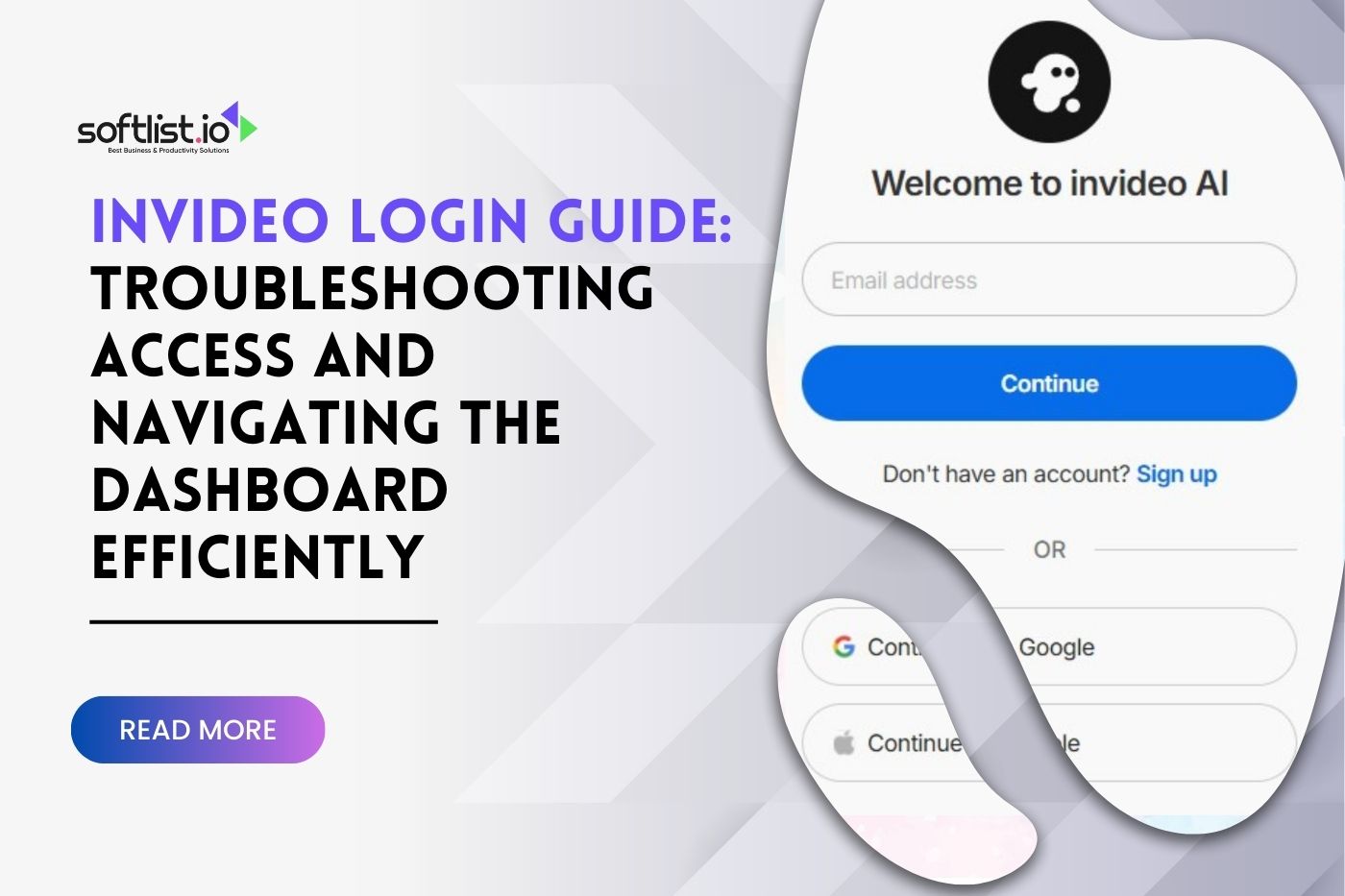
A common InVideo login issue is using the wrong portal, because the classic ‘InVideo Studio’ and the newer ‘InVideo AI’ are sold as separate products with different plans and entry pages. Users often encounter access problems because they attempt to use their Studio credentials on the AI platform or vice versa. Once you know this difference, you can usually fix login errors in a few clicks instead of wasting time on random resets and browser tweaks.
Key Takeaways
- InVideo Studio and InVideo AI function as separate products with their own plans, portals, and dashboards, and you may need to create or activate InVideo AI access even if you already use Studio.
- Browser cache clearing and disabling ad blockers resolve most access problems.
- The dashboard navigation differs significantly between the classic and AI versions.
- Two-factor authentication setup enhances account security for both platforms.
- Mobile app synchronization requires the same credentials as your web account.
Login problems can quickly stop you from editing or exporting videos, especially when you’re not sure which version of InVideo you’re using.
How to Log In (Studio vs. AI)
InVideo operates two distinct platforms that serve different user needs and are accessed through separate portals and pricing plans. The classic InVideo Studio focuses on template-based editing, while InVideo AI emphasizes artificial intelligence-powered video creation. Each platform is managed as a separate product with its own subscription and portal, so access to one doesn’t automatically grant full access to the other.
Choosing the right InVideo version from the start tells you exactly which login page to use and what kind of dashboard you’ll see after signing in.
InVideo Studio Login Process
Access the classic InVideo Studio by visiting the main InVideo website and clicking the standard login button. Enter your registered email address and password, or choose to sign in through Google or Facebook integration. New users can create accounts using the same social media options or traditional email registration.
- Navigate to invideo.io and select the login option
- Enter your Studio account credentials
- Choose social media authentication if preferred
- Access template-based editing tools after successful authentication
InVideo AI Platform Access
The AI-powered version requires separate credentials and offers a different interface focused on prompt-based video creation. Users must specifically sign up for InVideo AI access, as Studio accounts don’t automatically grant AI platform privileges. The AI version emphasizes natural language processing for video generation.
- Visit the dedicated InVideo AI portal
- Create new AI-specific account credentials
- Verify email address for account activation
- Access AI-powered video creation tools
Account Type Verification
Determine your account type by checking your subscription emails or attempting to access specific features. Studio accounts include traditional editing capabilities, while AI accounts focus on automated video generation. Some users maintain separate accounts for both platforms to access the full range of InVideo’s capabilities.
| Feature | InVideo Studio | InVideo AI |
|---|---|---|
| Login Portal | Main InVideo website | Dedicated AI platform |
| Account System | Traditional credentials | Separate AI account |
| Primary Focus | Template-based editing | AI-powered creation |
| Interface Style | Classic editor layout | Prompt-driven interface |
Login credential management becomes simpler when you understand the platform distinctions.
Troubleshooting Common Login Problems
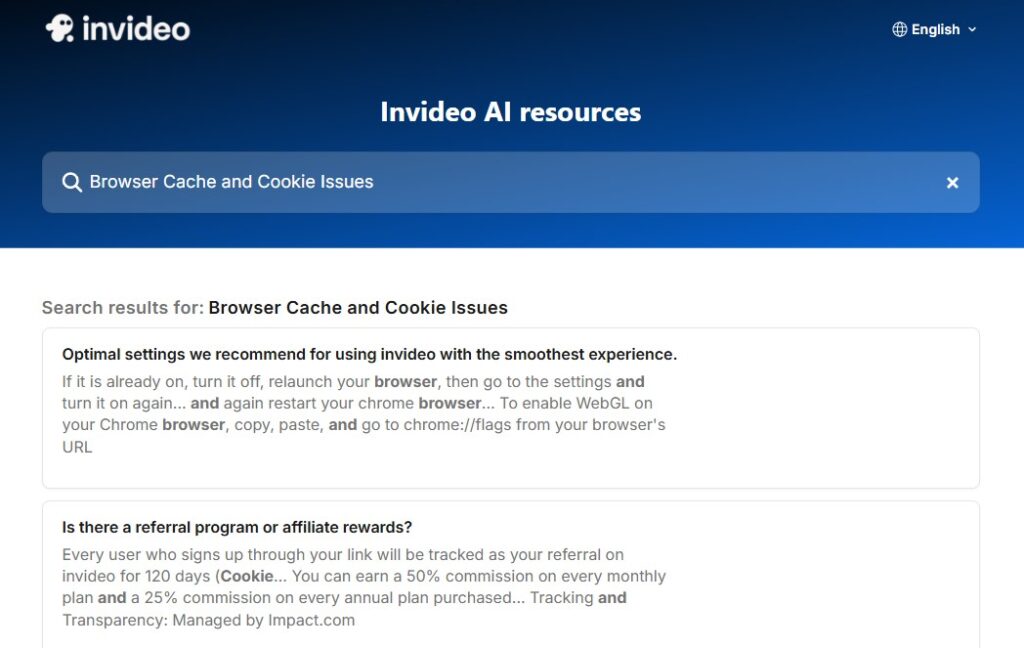
Image Source: Invideo AI
Browser-related issues account for a large share of InVideo login problems, with support guides and reviews repeatedly highlighting cache conflicts, outdated browsers, and extensions as common causes. Cached data conflicts, outdated browser versions, and extension interference create authentication barriers that prevent successful access. These technical issues often manifest as repeated login failures despite correct credentials.
Systematic troubleshooting approaches can resolve most access problems within minutes.
Browser Cache and Cookie Issues
Clear your browser cache and cookies to eliminate stored data conflicts that interfere with the authentication process. Outdated session data can prevent new login attempts from processing correctly. Chrome users should access Settings > Privacy and Security > Clear Browsing Data to remove cached information.
- Clear browser cache and cookies completely
- Disable browser extensions temporarily
- Update to the latest browser version
- Try incognito or private browsing mode
Password Reset and Account Recovery Steps
Use the ‘Forgot Password’ link on the login page to initiate account recovery when credentials fail repeatedly. Check your spam folder for password reset emails, as they sometimes bypass primary inbox filters. The password reset link expires after 24 hours for security purposes.
- Click the ‘Forgot Password’ option on login screen
- Enter your registered email address
- Check both inbox and spam folders for reset instructions
- Create a strong new password following security guidelines
Two-Factor Authentication Setup and Issues
If it’s available on your account, enable two-factor authentication for enhanced security, and make sure your chosen method (email, SMS, or authenticator app) is properly synchronized. Time-based codes require accurate device clock settings to function correctly. Backup codes provide alternative access when primary 2FA methods fail.
- Download an authenticator app like Google Authenticator
- Scan the QR code provided during setup
- Save backup recovery codes securely
- Test the authentication process before completing setup
Single Sign-On (SSO) Troubleshooting
Google and Facebook SSO integration can fail when third-party cookies are blocked or when account permissions change. Verify that your social media account has the necessary permissions enabled for InVideo access. Clear social media app data if mobile SSO authentication fails repeatedly.
Contact InVideo customer support through their help center if systematic troubleshooting doesn’t resolve persistent access issues.
Dashboard Navigation Guide
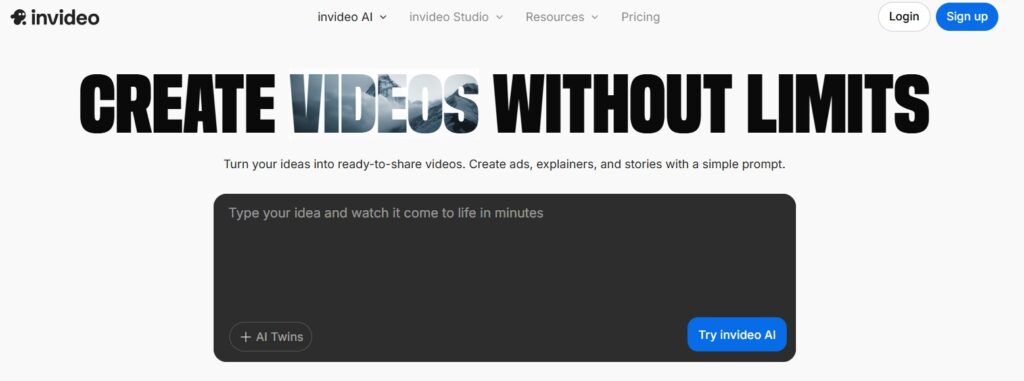
Image Source: Invideo AI
The InVideo dashboard serves as your central hub for project management, template access, and account settings. Understanding the layout differences between Studio and AI versions helps you locate tools efficiently and manage your video creation workflow. Both interfaces prioritize user-friendly navigation while offering distinct feature sets.
Dashboard mastery significantly improves your video editing productivity and project organization capabilities.
Finding Your Projects
Access your video projects through the ‘My Videos’ or ‘Projects’ section prominently displayed on the main dashboard. Projects are typically organized by creation date, with recent work appearing first in the list. Use search functionality to locate specific projects by name or creation date.
- Navigate to the ‘My Videos’ section on the main dashboard
- Use filters to sort by date, project type, or status
- Search for specific projects using the search bar
- Access project settings through the three-dot menu
Accessing the AI Prompt Interface
The AI prompt feature appears as a prominent text input field on the InVideo AI dashboard, allowing natural language video requests. Type detailed descriptions of your desired video content, including style preferences, duration, and target audience. The AI processes prompts and generates relevant templates and content suggestions.
- Locate the AI prompt text box on the dashboard
- Enter detailed video description and requirements
- Specify style, duration, and audience preferences
- Review AI-generated suggestions and templates
Template Library Navigation
Browse templates through category filters including business, social media, education, and marketing segments. The template library includes thousands of pre-designed options with customizable elements. Preview templates before selection to ensure they match your project requirements.
- Access template categories through the main navigation menu
- Use filters to narrow options by industry or style
- Preview templates with sample content
- Save favorite templates for future use
Project Management Dashboard Features
Organize your workspace using folders, tags, and custom project naming conventions for better file management. The dashboard displays project status indicators showing draft, published, or shared content. Collaboration features allow team access and permission management for shared projects.
| Dashboard Element | Function | Location |
|---|---|---|
| My Videos | Project access and management | Main navigation |
| Templates | Pre-designed video layouts | Top menu bar |
| AI Prompt | Natural language video creation | Center dashboard (AI version) |
| Account Settings | Subscription and profile management | Profile dropdown |
| Help Center | Support documentation and tutorials | Footer or help icon |
Subscription Plan Status and Workspace Management
Monitor your subscription plan status through the account settings section, which displays current plan limits and usage statistics. Free trial users can track remaining days and feature restrictions from this interface. Upgrade options are clearly presented when approaching plan limits.
- Check subscription status in account settings
- Monitor usage statistics and remaining credits
- Review plan limitations and upgrade options
- Manage team access and user permissions
Effective dashboard navigation streamlines your video creation process and improves overall productivity.
Alternative Video Editing Platforms
Several competing platforms offer similar video editing capabilities with their own unique login systems and dashboard layouts. Understanding these alternatives helps you make informed decisions about which cloud video editor best fits your workflow requirements. Each platform brings distinct advantages for different user types and project needs.
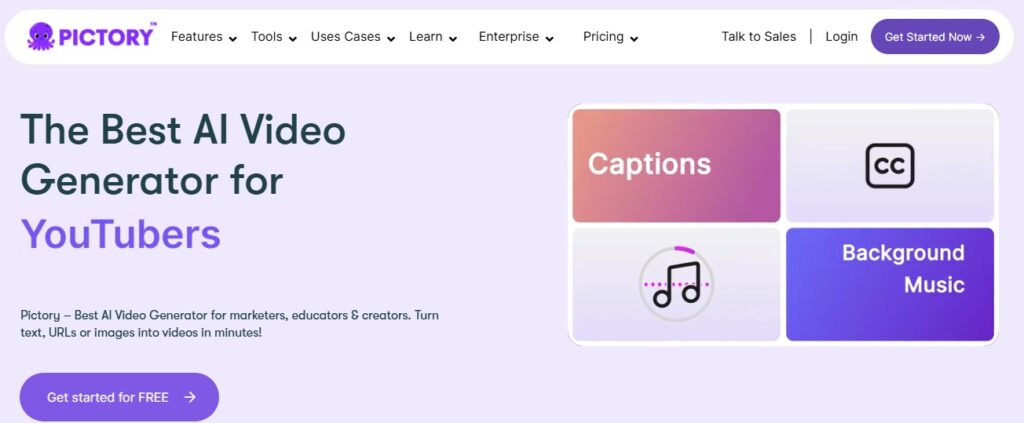
Image Source: Pictory
Pictory
Pictory specializes in AI-powered video creation from text content, offering automated script-to-video conversion capabilities. The platform features a streamlined dashboard focused on content input and automated video generation processes.
Automatically create short, highly-sharable branded videos from your long-form content. Quick, easy & cost-effective. No technical skills or software downloads is required.

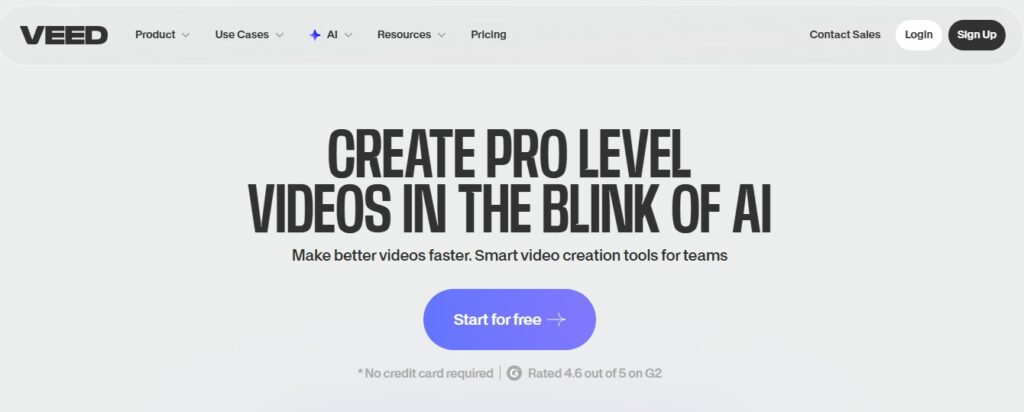
Image Source: Veed.io
Veed.io
Veed.io provides browser-based video editing with collaborative features and real-time team editing capabilities. Their dashboard emphasizes simplicity with drag-and-drop functionality and integrated stock media libraries.


Image Source: Elai
Elai
Elai focuses on AI avatar-based video creation, allowing users to generate presenter-style videos without filming. The platform’s interface centers around avatar selection and script input for automated video production.
Build customized AI videos with a presenter in minutes without using a camera, studio and a greenscreen.
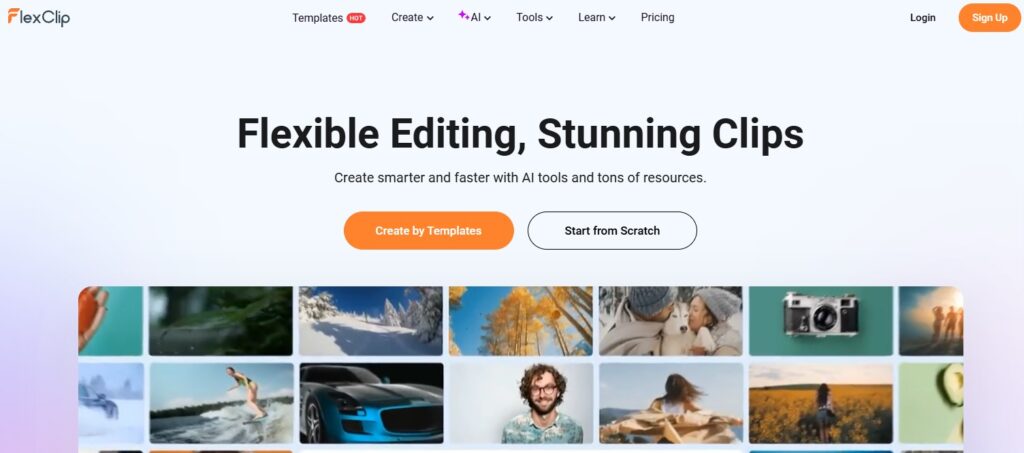
Image Source: FlexClip
FlexClip
FlexClip offers template-based video editing with extensive customization options and stock media integration. Their dashboard provides intuitive navigation between templates, media libraries, and editing tools for quick video creation.
Conclusion
Successful InVideo access requires understanding the platform distinctions between Studio and AI versions. Systematic troubleshooting resolves most login issues through browser maintenance and credential verification. Dashboard mastery enhances your video creation efficiency and project management capabilities.
Ready to streamline your video creation workflow with the right AI tools and strategies? Check out our exclusive deals on AI-powered video editors that help you produce high-quality content faster without sacrificing creative control. Explore our Top 10 AI Video Editor Tools guide on Softlist.io to discover ethical, high-impact platforms that support your skills instead of replacing them.
FAQs
What Is InVideo?
InVideo is an online video creation platform that enables users to produce professional-quality videos using a variety of templates and customizable features. It’s designed for everyone from solo creators to businesses, making video production accessible and efficient.
How Do I Log In To InVideo?
To log in to InVideo, visit the InVideo website and click on the ‘Login’ button. Enter your registered email address and password, then click ‘Login’ to access your account. If you’ve forgotten your password, use the ‘Forgot Password?’ link to reset it.
What Should I Do If I Can’t Access My InVideo Account?
If you can’t access your InVideo account, first ensure your login credentials are correct. If the issue persists, try clearing your browser cache or using a different browser. You can also reset your password or contact InVideo support for further assistance.
How Can I Navigate The InVideo Dashboard Efficiently?
To navigate the InVideo dashboard efficiently, familiarize yourself with the layout, including the project library, templates, and editing tools. Utilize the search bar to quickly find specific features or templates, and refer to the help section for tutorials and tips.
Are There Any Common Issues Users Face With InVideo Login?
Common issues users face with InVideo login include forgotten passwords, account lockouts due to multiple failed attempts, and browser compatibility problems. Ensuring your browser is updated and using the correct login details can help resolve these issues.
Can I Access InVideo From Any Device?
Yes, InVideo is a cloud-based platform, allowing you to access your account and projects from any device with an internet connection. This flexibility makes it easy to work on your videos from anywhere, whether on a desktop, tablet, or smartphone.
What Should I Do If My InVideo Dashboard Is Not Loading?
If your InVideo dashboard is not loading, check your internet connection and try refreshing the page. Clearing your browser cache or switching to another browser may also help. If the problem persists, consider reaching out to InVideo’s customer support for assistance.