
Murf.ai is a powerful AI voice generator designed for content creators, educators, marketers, and podcasters who want studio-quality voiceovers without hiring professional actors or investing in expensive audio equipment.
This comprehensive guide walks you through Murf.ai login, access the user dashboard, and maximize the Voice Studio to streamline your voiceover production process. Whether you’re just getting started or looking to enhance your projects with more polish, this beginner-friendly tutorial has you covered.
Key Takeaways
- Murf.ai offers flexible login options including Google, Microsoft, Slack, and email, making access simple and secure.
- The user-friendly dashboard serves as a central hub for managing voiceover projects, templates, and workspace settings.
- Murf’s Voice Studio enables users to write scripts, select from 100+ AI voices, and customize audio elements like pitch, speed, and emphasis.
- Users can enhance their voiceovers by syncing with video content and using the preview tool for real-time refinement.
- Exporting high-quality voiceovers requires a paid plan, with options for MP3 or WAV formats to suit professional needs.
Getting Started: How to Log In to Murf.ai

Image source: Murf AI
Before accessing Murf’s features, you’ll need to log in to your account. The platform offers several flexible login options.
A. Step-by-Step Murf.ai Login Instructions
Follow these step-by-step instructions to easily log in to your Murf.ai account and access the full suite of voiceover creation tools.
- Access the Website: Navigate to the Murf.ai homepage.
- Click “Log In”: Found at the top-right of the page.
- Choose Your Method:
- Log in with Google, Microsoft, or Slack
- Use email and password
Note: If you previously signed up via Facebook, which was discontinued in April 2023, use the email linked to your Facebook and click on “Forgot Password” to reset your credentials. For phone number logins, contact Murf support.
Supported Browsers & Devices
To ensure smooth access and optimal performance, use the following supported platforms:
- Recommended Browsers: Chrome, Firefox, Edge (latest versions)
- Mobile Access: Murf Studio is best used on a desktop. Mobile browsers offer limited functionality.
- Best Experience: Use a laptop or desktop with a stable internet connection, especially when uploading media or syncing audio with visuals.
B. New User? Create an Account
If you’re new to Murf.ai, follow these quick steps to create an account and start producing professional-quality voiceovers in minutes.
- Click “Sign Up”
- Choose Google, Microsoft, Slack, or email registration
- Use a strong password (minimum 8 characters with letters, numbers, and symbols)
- Confirm your email via a verification link
- Log in to access your dashboard
Security Features at Login
Murf.ai uses industry-standard protocols to secure your login process:
- OAuth2 Authentication: Supports secure login via Google, Slack, or Microsoft.
- Session Timeout: For your protection, inactive sessions may be automatically logged out.
- Two-Factor Authentication (2FA): Not currently mandatory but may be required if integrated via enterprise accounts.
- Device Monitoring: The platform may require re-authentication if suspicious login activity is detected.
C. Troubleshooting Login Issues
Encountering issues logging in? Here are some quick solutions:
- Forgot your password? Click the “Forgot Password” link to receive a reset email.
- Didn’t receive a verification email? Check your spam/junk folder and request a new one if needed.
- Third-party login issues?
- Ensure you’re logged into the respective Google, Slack, or Microsoft account in the same browser.
- Try using an incognito window or a different browser.
- Account locked or inactive? Reach out to Murf support for assistance via the Help Center or support@murf.ai.
Understanding the Murf.ai Dashboard
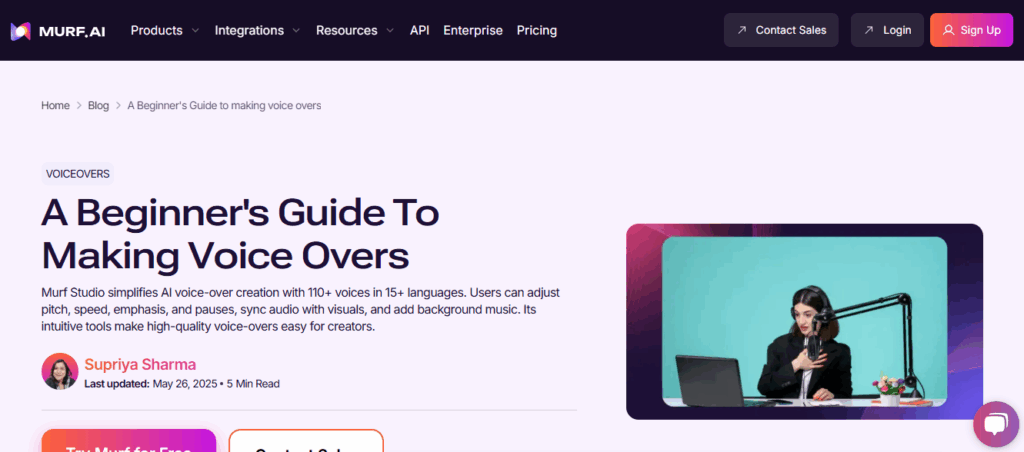
Image source: Murf AI
Once logged in, you’ll enter the Murf Dashboard, your central command center for all projects.
Dashboard Features
Explore the Murf.ai dashboard to manage your projects, access templates, adjust workspace settings, and streamline your voiceover workflow with ease.
| Feature | Function |
| Create Project | Start a new voiceover project with templates or from scratch |
| Templates | Pre-built layouts for e-learning, ads, podcasts, and more |
| My Projects | Access all past and current projects |
| Workspace Settings | Manage billing, preferences, and account information |
| Help Resources | Access tutorials, documentation, and Murf Academy |
You can customize your workspace and organize your files efficiently by creating folders and naming projects logically.
Make studio-quality voiceovers in minutes. Use Murf's lifelike AI voices for podcasts, videos, and all your professional presentation.


The Voice Studio: Your Voiceover Production Hub
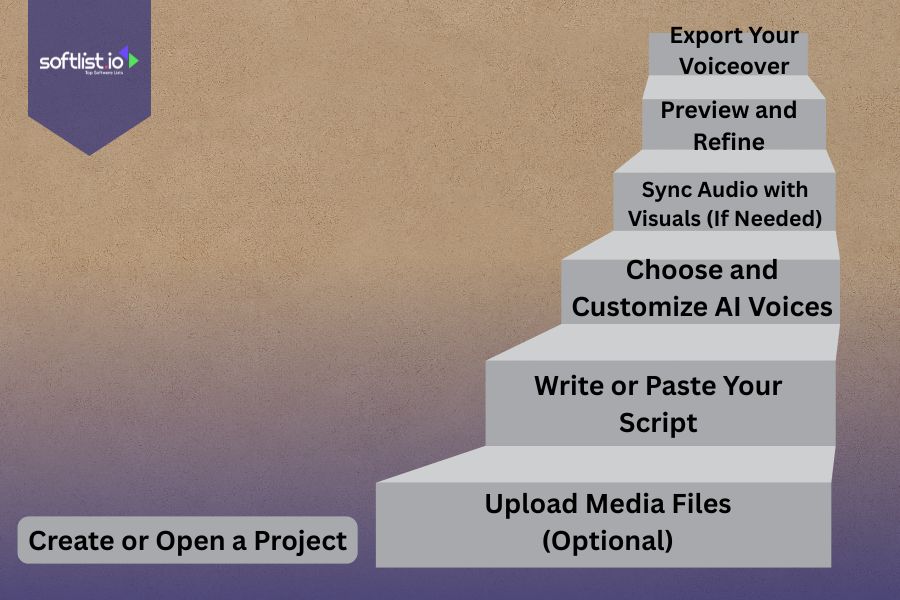
Image source: Canva
Murf’s Voice Studio is where your script comes to life. Here’s how to take full control over your voiceover production.
Step 1: Create or Open a Project
- Click “Create Project”
- Enter your project name
- Choose a template or begin from scratch
Step 2: Upload Media Files (Optional)
- Add audio or video (MP3, MP4, etc.) by clicking “Upload” or “Add Media”
- Ideal for dubbing or syncing existing content
Step 3: Write or Paste Your Script
- Enter text into the script editor (up to 1,000 characters per block)
- Add more blocks as needed
- Use Murf’s AI grammar assistant to refine your script
Step 4: Choose and Customize AI Voices
- Click the character icon beside each text block
- Browse 110+ voices in over 15 languages with various accents and age ranges
- Preview voices before selecting
- Adjust:
- Pitch
- Speed
- Volume
- Emphasis using a visual graph
- Pauses (customizable length) (Reference)
Step 5: Sync Audio with Visuals (If Needed)
- Use Murf’s timeline to match voiceovers with video elements
- Drag-and-drop blocks for precise alignment
Step 6: Preview and Refine
- Hit “Preview” to listen to your voiceover
- Edit timing, tone, or script as needed for a natural sound
Step 7: Export Your Voiceover
- Click “Export” when done
- Choose between MP3 or WAV
- Note: Exporting requires a paid plan
Summary Table: Key Voice Studio Actions
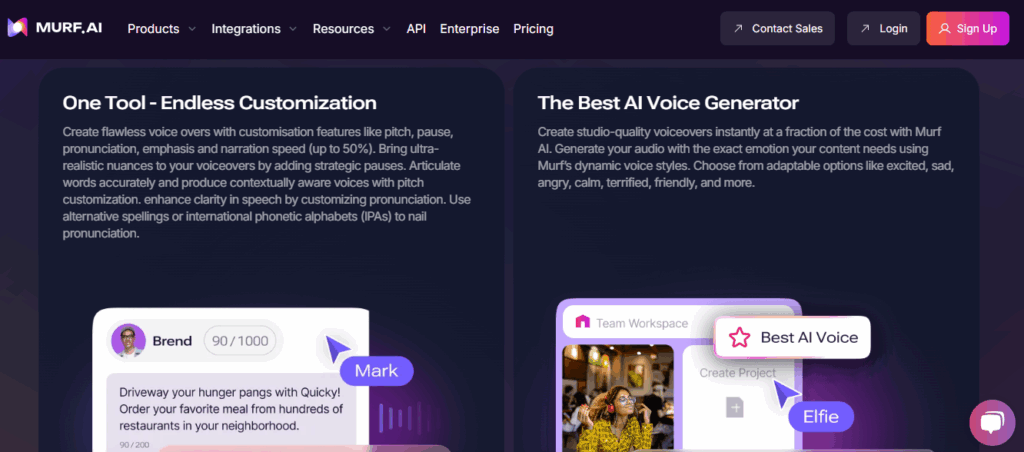
Image source: Murf AI
Use this summary table to quickly understand the key actions available in Murf’s Voice Studio and where to find each feature for efficient voiceover production.
| Action | Location | Purpose |
| Create Project | Dashboard > “Create Project” | Begin a new voiceover project |
| Upload Media | Voice Studio Sidebar | Add supporting video or audio content |
| Enter/Edit Script | Text Editor | Create and organize your voice script |
| Choose Voice | Character icon in each block | Select from 100+ realistic AI voices |
| Customize Voice | Editor Controls above script | Adjust pitch, pace, and emphasis |
| Sync with Video | Timeline view | Align voiceover with visuals |
| Preview | Toolbar > “Preview” | Test your final voice output |
| Export Project | Toolbar > “Export” | Download audio file for final use |
Bonus Tips for Efficient Voiceover Workflows

Image source: Canva
Maximize your productivity and ensure high-quality results in Murf.ai by following these expert-recommended practices:
Label and Organize Projects with Specific Names
Use clear and descriptive naming conventions for each project (e.g., “Q3_Product_Ad” or “Course_Module_Intro”) to easily track versions, share with collaborators, and avoid confusion as your content library grows.
Use Templates for Consistent Formats
Murf offers pre-built templates ideal for common content types like YouTube intros, eLearning lessons, and ads. Leveraging these templates ensures a consistent structure across projects, saving time and reinforcing your brand identity.
Preview Often to Catch Awkward Phrasing Early
Regularly preview your voiceovers during the scripting and editing process. This helps identify unnatural phrasing, pacing issues, or incorrect emphasis before finalizing the script, minimizing the need for rework later.
Save Frequently and Use Version Control If Available
Get into the habit of saving your progress often, especially after major script or voice changes. If your workspace supports it, maintain version history or create duplicate projects to track edits and revert to previous versions if needed.
Experiment with Different Voices and Emphasis Patterns
Murf’s diverse AI voice library and customization tools let you test various voices, tones, and emphasis settings. Don’t settle for the first combination—explore multiple options to find the most natural and engaging delivery for your content.
By integrating these habits into your workflow, you’ll improve the efficiency and quality of your voiceover projects.
Murf Alternatives: Other Platforms with Similar Features
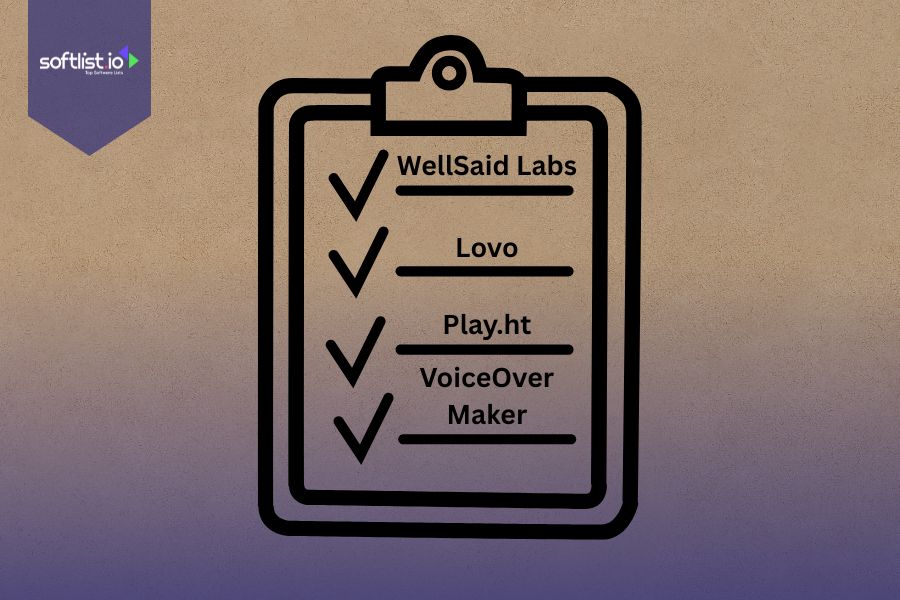
Image source: Canva
Murf is one of the leaders in the AI voice space, but several platforms also offer competitive features. Depending on your needs, you may consider these:
| Platform | Key Features | Best For |
| WellSaid Labs | High-quality voices with studio clarity | Professional narrations, corporate use |
| Lovo | Extensive voice library, emotional tones | YouTubers, ad creators, podcasters |
| Play.ht | Custom voice cloning, API access, realistic tones | Developers, long-form content creators |
| VoiceOverMaker | Script-based editor, timeline, language variety | Video dubbing, multi-lingual projects |
Each of these can serve as either an alternative or a complementary tool, depending on your project scope and desired voice style.

|

|

|

|
|
Primary Rating:
3.5
|
Primary Rating:
3.5
|
Primary Rating:
3.5
|
Primary Rating:
3.5
|
Final Thoughts
Murf.ai provides an intuitive platform that allows users to produce professional-quality voiceovers quickly and easily. With its robust Voice Studio and seamless dashboard, it streamlines projects for content creators, educators, and marketers. Exploring Murf alongside alternatives like Lovo and Play.ht can expand creative possibilities and improve productivity in voiceover production.
Discover exclusive deals and promotions on the best content creation tools at Softlist.io. Whether you’re a marketer, educator, or podcaster, explore our curated list of the Top 10 AI voice generators that elevate your production quality. Visit Softlist.io today and take your voiceovers—and your content—to the next level.
FAQs
How Do You Use Murf Voice Changer?
Murf doesn’t function as a live voice changer like some real-time audio tools; instead, you use it by typing or pasting your script into the Voice Studio, selecting a realistic AI voice, and customizing pitch, speed, emphasis, and tone. It’s ideal for transforming written text into professional-quality voiceovers, rather than modifying your own recorded voice.
How To Use Murf AI in Canva?
To use Murf.ai voiceovers in Canva, first create and export your audio file (MP3 or WAV) from Murf’s Voice Studio. Then, open your Canva design, go to the “Uploads” tab, and upload the Murf audio. You can sync the audio with video slides, presentations, or other multimedia content directly within Canva’s editor.
What Is the AI Tool for Voice Changer?
Murf.ai is one of the leading AI tools for generating and modifying voiceovers from text using high-quality synthetic voices. While not a real-time voice changer, it’s perfect for scripted content. Other popular tools that function as live or recorded voice changers include Voicemod, Clownfish Voice Changer, and Lovo.ai (for more expressive AI-generated voices).
How Does Murf Work?
Murf.ai works by converting your written script into spoken audio using lifelike AI voices. You enter your text into blocks, choose from over 100 voices in different languages and accents, and customize delivery features like pitch, speed, volume, and pauses. The platform also allows syncing with video and media files, making it ideal for polished voiceover production.
How Does the Voice System Work?
Murf.ai voice system is powered by advanced AI and deep learning models trained on human speech patterns. It analyzes your script, generates voice output that mimics natural human tone and inflection, and lets you fine-tune delivery with features like emphasis markers, pause controls, and a visual timeline for syncing with visuals. This ensures the final output sounds clear, expressive, and professionally recorded.




